Antivirus IS
Antivirus IS is a type of rogue security program from the same family as Security Suite and a type Antivirus Software. Antivirus IS displays fake security alerts and reports fake.Remove Antivirus IS (Uninstall Guide)
This Antivirus IS page contains free removal instructions for the Antivirus IS computer infection. Please use this guide to remove Antivirus IS
How to Remove Antivirus IS
Antivirus IS is a rogue security program from the same family as Security Suite and Antivirus Soft. It displays fake security alerts and reports fake malware infections to make you think that your computer is infected with all sorts of malware. Then it will prompt you to pay for a full version of the program to remove supposedly infected files from your computer. It goes without saying that such rogue software cant remove anything because it reports non-existent files as infections. It may even claim that some legitimate system files are infected, so please don't manually delete any of the reported files. Instead, download an automatic removal tool or follow Antivirus IS removal instructions below. You can manually remove Antivirus IS related files but afterwords you should still scan your computer with Spyware Doctor other legitimate anti-spyware program to make sure that there are no remains on additionally downloaded malware on your computer.
While running, Antivirus IS will display a bunch of fake security alerts and pop-ups from the Windows task bar. These alerts will claim that your computer has some serious security problems, errors and privacy issues. Some of these alerts will display a list with supposedly detected malware on your computer. Usually, AntivirusIS reports several Trojans, worms, dialers, spyware and other malicious software. The bad news is that this rogue program will hijack Internet Explorer and other web browsers too. It will blocks other programs on your computer as well, i.e. task manager, registry editor and even system restore. However, there is a list of processes that are allowed by Antivirus IS, so you can simply rename the installer of any malware removal program to iexplore.exe. If you can't download anything then please reboot your computer in safe mode with networking and re-download the program. Malicious websites related to Antivirus IS: ezantispy.com, antispamwatch.com. As you can see, Antivirus IS is yet another scam trying to scare money out of you. Don't purchase this bogus program. If you have already bought it then please contact your credit card company and dispute the charges. The use Antivirus IS removal instructions below.
Remove Antivirus IS (Uninstall Guide)
Antivirus IS is a fake security program from the same family as Security Suite. This malware is installed onto your computer through the use of malware and fake online anti-malware scanners. When Antivirus IS is installed it will lay dormant for a period of time and then the program will be displayed and start performing a scan of your computer. Once the scan has finished it will state that your computer is infected with numerous infections, but will not allow you to remove anything until you first purchase the program. This is a scam as the infections it finds are all fake and are only being shown to scare you into purchasing the program.
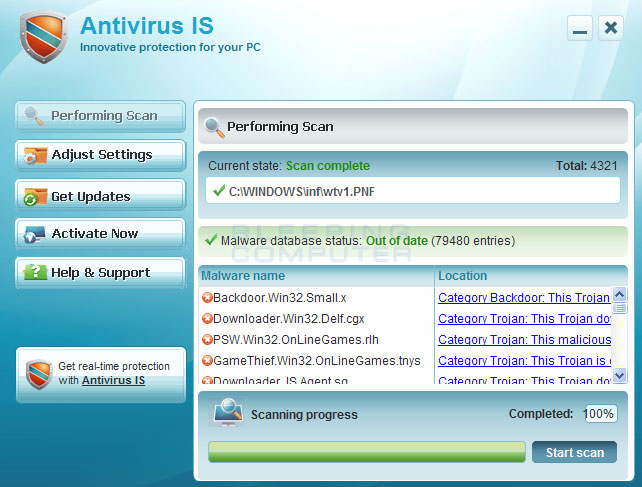
Antivirus IS screen shot
For more screen shots of this infection click on the image above.
There are a total of 6 images you can view.
While Antivirus IS is running it will also block you from running numerous programs because it states they are infections. In reality it is blocking the execution of programs so that you are unable to launch a security program that may assist in removing Antivirus IS from your computer. When you attempt to start a program it will terminate it and display the following message:
Security WarningWhen you see these warnings you should not be concerned that your programs are infected. It just Antivirus IS displaying a false message.
Application cannot be executed. The file notepad.exe is infected. Do you want to activate your antivirus software now.
While the program is running it will also display fake security warnings that are worded in such a way to make you think that your computer has a severe security problem. Some of the alerts that you may see are:
Windows Security AlertJust like the fake scan results, these security alerts are all false and only being shown to scare you.
Windows reports that computer is infected. Antivirus software helps to protect your computer against viruses and other security threats. Click here for the scan your computer. Your system might be at risk now.
Antivirus software alert
INFILTRATION ALERT
Your computer is being attacked by an internet virus. It could be a password-stealing attack, trojan - dropper or similar.
Threat: Win32/Nuqel.E
Do you want to block this attack? Yes or No
When Antivirus IS is installed it will also configure your computer to use a Proxy Server. The rogue executable listens on TCP port 6522 of your computer and acts as the proxy server. Then when you browse the Internet, the browser will connect to this proxy server, which will randomly display a warning page that says the site you are visiting can harm your computer. The text of this message is:
Internet Explorer warning - visiting this site may harm your computer! Most likely causes:This Internet Explorer hijack is false as well and just another tactic where the developers are trying to convince you that your computer is infected. It is important to note, though, that when you terminate or remove the Antivirus IS process, your browser will no longer work until you disable the configured proxy server. The guide below will walk you through removing the proxy server.What you can try:
- The website contains exploits that can launch a malicious code on your computer
- Suspicious network activity detected
- There might be an active spyware running on your computer
- Purchase for secure Internet surfing (Recommended)
- Check your computer for viruses and malware
As you can see, Antivirus IS was created for one purposes; to scare you into thinking your computer has a severe virus problem so that you will then purchase the program. You should definitely not purchase Antivirus IS, and if you already have, please contact your credit card company and state that the program is a computer infection and a scam. To remove this infection and any related malware, please follow the steps in the guide below.
Threat Classification:
- Information on Rogue Programs & Scareware
Advanced information:
View Antivirus IS files.
View Antivirus IS Registry Information.
Tools Needed for this fix:
- Malwarebytes Anti-Malware
Symptoms that may be in a HijackThis Log:
O4 - HKCU\..\Run: [<random>] %Temp%\<random>\<random>lanw.exe
Guide Updates:
10/01/10 - Initial guide creation.
Automated Removal Instructions for Antivirus IS using Malwarebytes Anti-Malware:
- Print out these instructions as we may need to close every window that is open later in the fix.
- It is possible that the infection you are trying to remove will not allow you to download files on the infected computer. If you run into this problem when following the steps in this guide you will need to download the files requested in this guide on another computer and then transfer them to the infected computer. You can transfer the files via a CD/DVD, external drive, or USB flash drive.
- Reboot your computer into Safe Mode with Networking using the instructions for your version of Windows found in the following tutorial:
How to start Windows in Safe Mode
When following the steps in the above tutorial, select Safe Mode with Networking rather than just Safe Mode. When the computer reboots into Safe Mode with Networking make sure you login with the username you normally use. When you are at your Windows desktop, please continue with the rest of the steps.
- This infection changes your Windows settings to use a proxy server that will not allow you to browse any pages on the Internet with Internet Explorer or update security software. Regardless of the web browser you use, for these instructions we will first need need to fix this problem so that we can download the utilities we need to remove this infection.
Please start Internet Explorer, and when the program is open, click on the Tools menu and then select Internet Options as shown in the image below.
- You should now be in the Internet Options screen as shown in the image below.
Now click on the Connections tab as designated by the blue arrow above.
- You will now be at the Connections tab as shown by the image below.
Now click on the Lan Settings button as designated by the blue arrow above.
- You will now be at the Local Area Network (LAN) settings screen as shown by the image below.
Under the Proxy Server section, please uncheck the checkbox labeled Use a proxy server for your LAN. Then press the OK button to close this screen. Then press the OK button to close the Internet Options screen. Now that you have disabled the proxy server you will be able to browse the web again with Internet Explorer.
- Now we must end the processes that belong to Antivirus IS so that it does not interfere with the cleaning procedure. To do this, please download RKill to your desktop from the following link.
RKill Download Link - (Download page will open in a new tab or browser window.)
When at the download page, click on the Download Now button labeled iExplore.exe download link. When you are prompted where to save it, please save it on your desktop.
If you are unable to connect to the site to download rkill, please go back and do steps 3-6 again and make sure the infection has not reenabled the proxy settings. You may have to do this quite a few times before you can get the RKill file downloaded. If you still cannot download the RKill program on the infected computer, you should download it to a clean computer and copy it to the infected one via a USB flash drive or CDROM.
- Once it is downloaded, double-click on the iExplore.exe icon in order to automatically attempt to stop any processes associated with Antivirus IS and other Rogue programs. Please be patient while the program looks for various malware programs and ends them. When it has finished, the black window will automatically close and you can continue with the next step. If you get a message that RKill is an infection, do not be concerned. This message is just a fake warning given by Antivirus IS when it terminates programs that may potentially remove it. If you run into these infections warnings that close RKill, a trick is to leave the warning on the screen and then run RKill again. By not closing the warning, this typically will allow you to bypass the malware trying to protect itself so that RKill can terminate Antivirus IS . So, please try running RKill until the malware is no longer running. You will then be able to proceed with the rest of the guide. Do not reboot your computer after running rkill as the malware programs will start again.
If you continue having problems running RKill, you can download the other renamed versions of RKill from the RKill download page. Both of these files are renamed copies of RKill, which you can try instead. Please note that the download page will open in a new browser window or tab.
- Now you should download Malwarebytes Anti-Malware, or MBAM, from the following location and save it to your desktop:
Malwarebytes Anti-Malware Download Link (Download page will open in a new window)
If you are unable to connect to the site to download Malwarebytes', please go back and do steps 3-6 again and make sure the infection has not reenabled the proxy settings.
- Once downloaded, close all programs and Windows on your computer, including this one.
- Double-click on the icon on your desktop named mbam-setup.exe. This will start the installation of MBAM onto your computer.
- When the installation begins, keep following the prompts in order to continue with the installation process. Do not make any changes to default settings and when the program has finished installing, make sure you leave both the Update Malwarebytes Anti-Malware and Launch Malwarebytes Anti-Malware checked. Then click on the Finish button. If MalwareBytes' prompts you to reboot, please do not do so.
- MBAM will now automatically start and you will see a message stating that you should update the program before performing a scan. As MBAM will automatically update itself after the install, you can press the OK button to close that box and you will now be at the main program as shown below.
- On the Scanner tab, make sure the the Perform full scan option is selected and then click on the Scan button to start scanning your computer for Antivirus IS related files.
- MBAM will now start scanning your computer for malware. This process can take quite a while, so we suggest you go and do something else and periodically check on the status of the scan. When MBAM is scanning it will look like the image below.
- When the scan is finished a message box will appear as shown in the image below.
You should click on the OK button to close the message box and continue with the Antivirus IS removal process.
- You will now be back at the main Scanner screen. At this point you should click on the Show Results button.
- A screen displaying all the malware that the program found will be shown as seen in the image below. Please note that the infections found may be different than what is shown in the image.
You should now click on the Remove Selected button to remove all the listed malware. MBAM will now delete all of the files and registry keys and add them to the programs quarantine. When removing the files, MBAM may require a reboot in order to remove some of them. If it displays a message stating that it needs to reboot, please allow it to do so. Once your computer has rebooted, and you are logged in, please continue with the rest of the steps.
- When MBAM has finished removing the malware, it will open the scan log and display it in Notepad. Review the log as desired, and then close the Notepad window.
- You can now exit the MBAM program.
- As this infection is commonly bundled with the TDSS infection, you should also run a program that can be used to scan for this infection. Please follow the steps in the following guide:
How to remove Google Redirects or the TDSS, TDL3, or Alureon rootkit using TDSSKiller
If after running TDSSKiller, you still feel like there is something not right with the computer, feel free to post a virus removal request using the steps in this topic:
Preparation Guide For Use Before Using Malware Removal Tools and Requesting Help
- As many rogues and other malware are installed through vulnerabilities found in out-dated and insecure programs, it is strongly suggested that you use Secunia PSI to scan for vulnerable programs on your computer. A tutorial on how to use Secunia PSI to scan for vulnerable programs can be found here:
How to detect vulnerable and out-dated programs using Secunia Personal Software Inspector


Your computer should now be free of the Antivirus IS program. You may want to consider purchasing the PRO version of Malwarebytes Anti-Malware to protect against these types of threats in the future, as if you had the real-time protection component, that comes with the paid for version, activated it would not have allowed this infection to install.
If you are still having problems with your computer after completing these instructions, then please follow the steps outlined in the topic linked below:
Preparation Guide For Use Before Using Malware Removal Tools and Requesting Help
Associated Antivirus IS Files:
%Temp%\<random>\
%Temp%\<random>\<random>lanw.exe
File Location Notes:
%Temp% refers to the Windows Temp folder. By default, this is C:\Windows\Temp for Windows 95/98/ME, C:\DOCUMENTS AND SETTINGS\<Current User>\LOCAL SETTINGS\Temp for Windows 2000/XP, and C:\Users\<Current User>\AppData\Local\Temp for Windows Vista and Windows 7.
Associated Antivirus IS Windows Registry Information:
HKEY_CURRENT_USER\Software\mksybupgw
HKEY_CURRENT_USER\Software\Microsoft\Internet Explorer\PhishingFilter "Enabled" = "0"
HKEY_CURRENT_USER\Software\Microsoft\Windows\CurrentVersion\Internet Settings "ProxyOverride" = ""
HKEY_CURRENT_USER\Software\Microsoft\Windows\CurrentVersion\Internet Settings "ProxyServer" = "http=127.0.0.1:27811"
HKEY_CURRENT_USER\Software\Microsoft\Windows\CurrentVersion\Internet Settings "ProxyEnable" = "1"
HKEY_LOCAL_MACHINE\SOFTWARE\Microsoft\Windows\CurrentVersion\Run "<random>lanw.exe"
HKEY_CURRENT_USER\Software\Microsoft\Windows\CurrentVersion\Run "<random>lanw.exe"
This is a self-help guide. Use at your own risk.
BleepingComputer.com can not be held responsible for problems that may occur by using this information. If you would like help with any of these fixes, you can ask for malware removal assistance in our Virus, Trojan, Spyware, and Malware Removal Logs forum.If you have any questions about this self-help guide then please post those questions in our AntiVirus, Firewall and Privacy Products and Protection Methods forum and someone will help you.

Here is my testimony on how I was cured of HIV by Dr Akhigbe,with his natural herbal medicine. on a regular basis in efforts to help others when I could. As you may know, each donation is tested. Well, on July 6th I had a meeting with a Red Cross representative and was told that I had HIV. “What went through your mind when you heard that "Rose" Good question reader! To be honest, I thought my life was over, that I would ever find love, get married, have children or anything normal. Lucky for me I have an amazing support system. My family supported me then I never thought that I was invincible to STD s or pregnancy or anything else parents warn their kids about. I just didn’t think about it. I was in a monogamous relationship and thought that I asked the right questions. We even talked about marriage Scary. During that time I was in college and donated blood on a re as well. who helped me in search of cure through the media.there we saw a good testimony of sister 'Kate' about the good work of Dr Akhigbe natural herbal medicine cure.then I copied his email address and contacted him. A good herbalist doctor with a good heart, he is kind, loving and caring. He replied back to my message and told me what to do. After a week the doctor sent me my herbal medicine and instructed me how to take it.Yes it worked very well, after drinking it I went to the hospital for another test and everything turned negative. What a wonderful testimony I can never forget in my life. Dr Akhigbe is a man who gave me a life to live happily forever so all I want you all to believe and know that cure of HIV is real and herbs is a powerful medicine and it works and heals. Dr Akhigbe also used his herbal medicine to cure diseases like: HERPES, DIABETES, SCABIES, HEPATITIS A/B, STROKE, CANCER, ALS, TUBERCULOSIS, ASTHMA, PENIS ENLARGEMENT, MALARIA, LUPUS, LIVER CIRRHOSIS, DEPRESSION, HIV/AIDS, EPILEPSY, BACTERIAL, DIARRHEA, HEART DISEASES, HIGH BLOOD PRESSURE, PARKINSON'S, ALZHEIMER, COLD URTICARIA, HUMAN PAPILLOMAVIRUS,INSOMNIA, BACTERIAL VAGINOSIS, SCHIZOPHRENIA, JOINT PAIN, STOMACH PAIN, CHROME DISEASES, CHLAMYDIA, INSOMNIA HEARTBURN, , THYROID, MAR BURG DISEASES, MENINGITIS, ARTHRITIS, BODY WEAK, ANTI VIRUS, SMALLPOX, DENGUE, FEVER, CURBS, CHANCRE, AND OTHERS VARIOUS DISEASES/ VIRUS. You are there and you find yourself in any of these situations, kindly contact Dr Akhigbe now to help you get rid of it. Here is his email address:
ReplyDeletedrrealakhigbe@gmail.com or you can write to him on whats app with his phone number: +234 901 075 4824.
My appreciation is to share his testimony for the world to know the good work Dr Akhigbe has done for me and he will do the same for you.